⚡
Instant preview
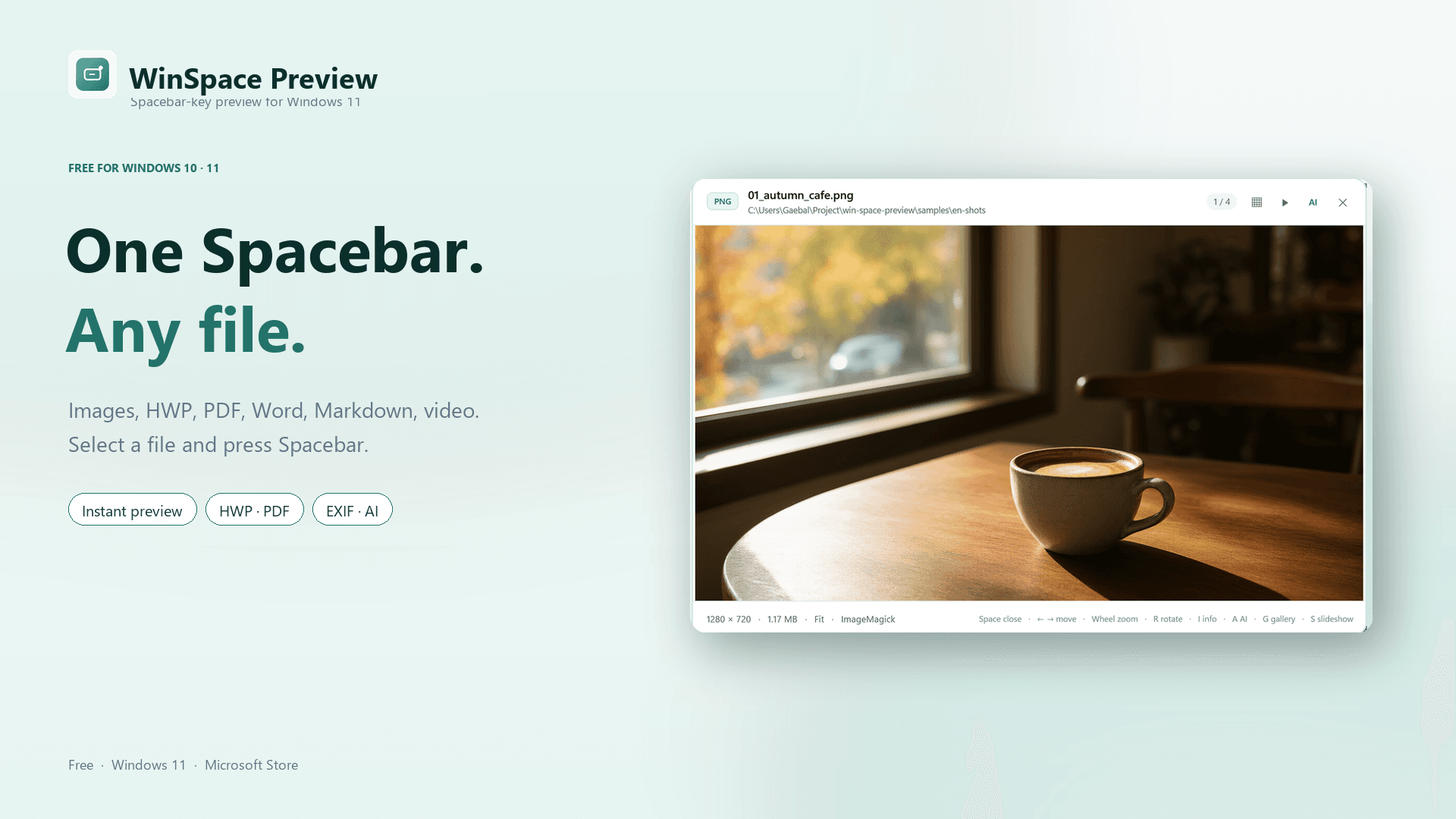
The preview window and loading state appear immediately after Spacebar. A fast screen-sized preview is shown first, then the full-resolution image.
 WinSpace Preview한국어Microsoft Store
Free for Windows 10 · 11
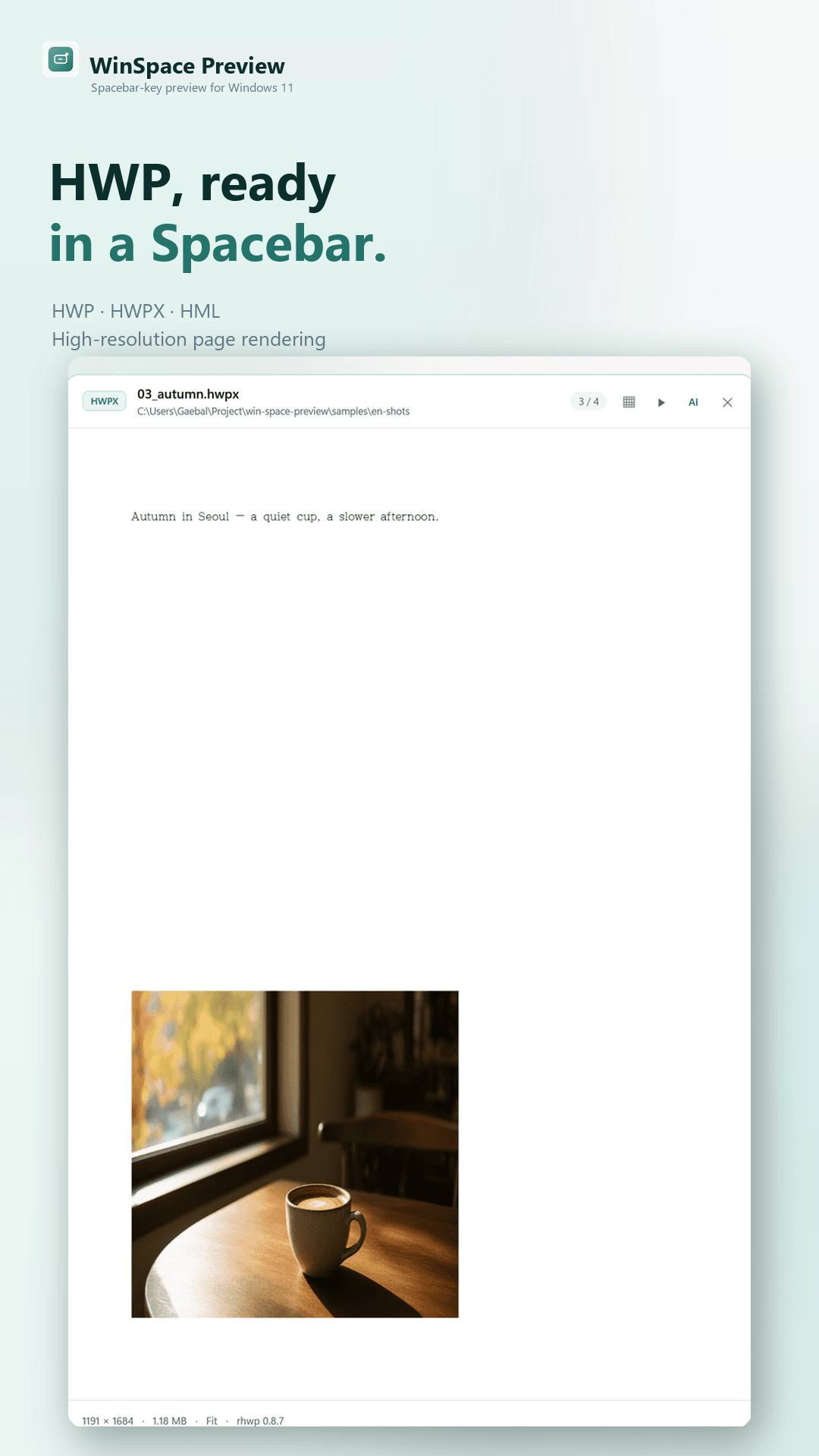
Select a file in Explorer and press Spacebar. Preview images, HWP/HWPX, PDF, Word, Markdown, and video without opening another app.
Why WinSpace Preview
Large files show a loading state first, then the fastest result that can be displayed.
The preview window and loading state appear immediately after Spacebar. A fast screen-sized preview is shown first, then the full-resolution image.
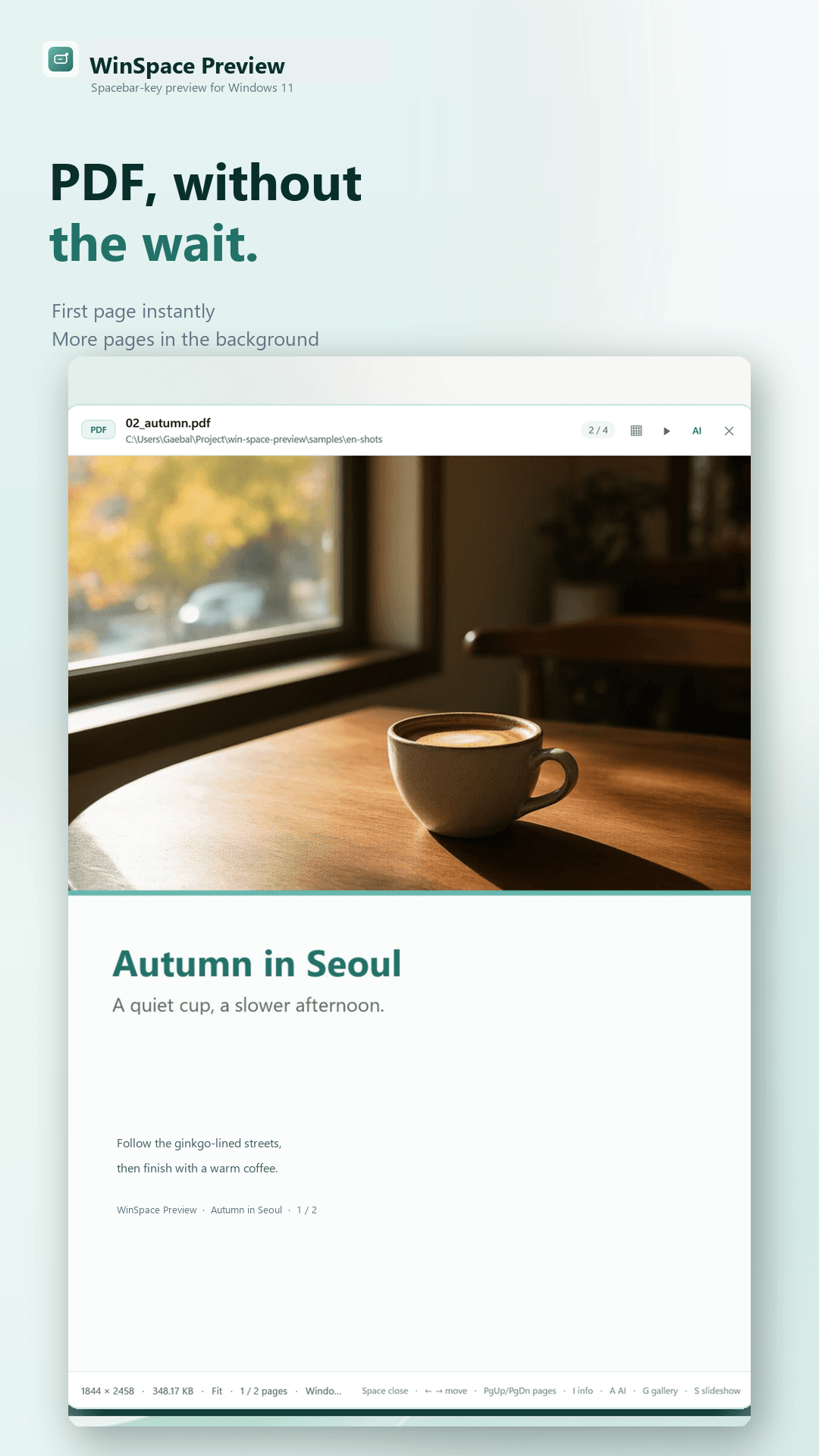
The first page is rendered first, and remaining pages load progressively in the background.
HEIC, AVIF, JPEG XL, PSD, RAW, and animated GIF/WebP are supported alongside the usual formats.
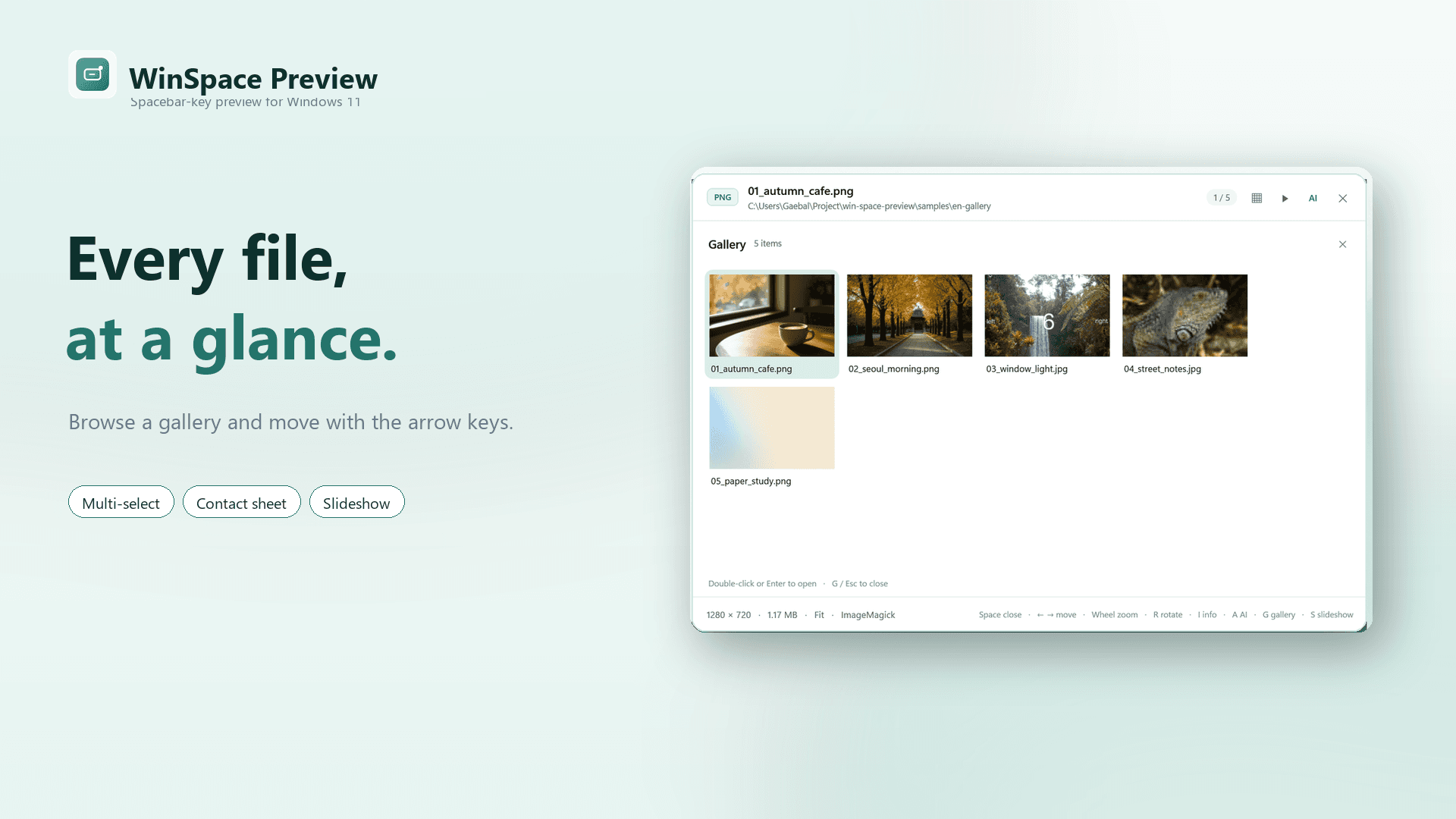
Select multiple files and press G to browse a thumbnail gallery with the arrow keys.
Play an image slideshow in the full window. Press Esc to return to the normal preview.
Summarize documents and analyze images with a ChatGPT Plus/Pro account. Nothing is sent before you consent.
Screenshots
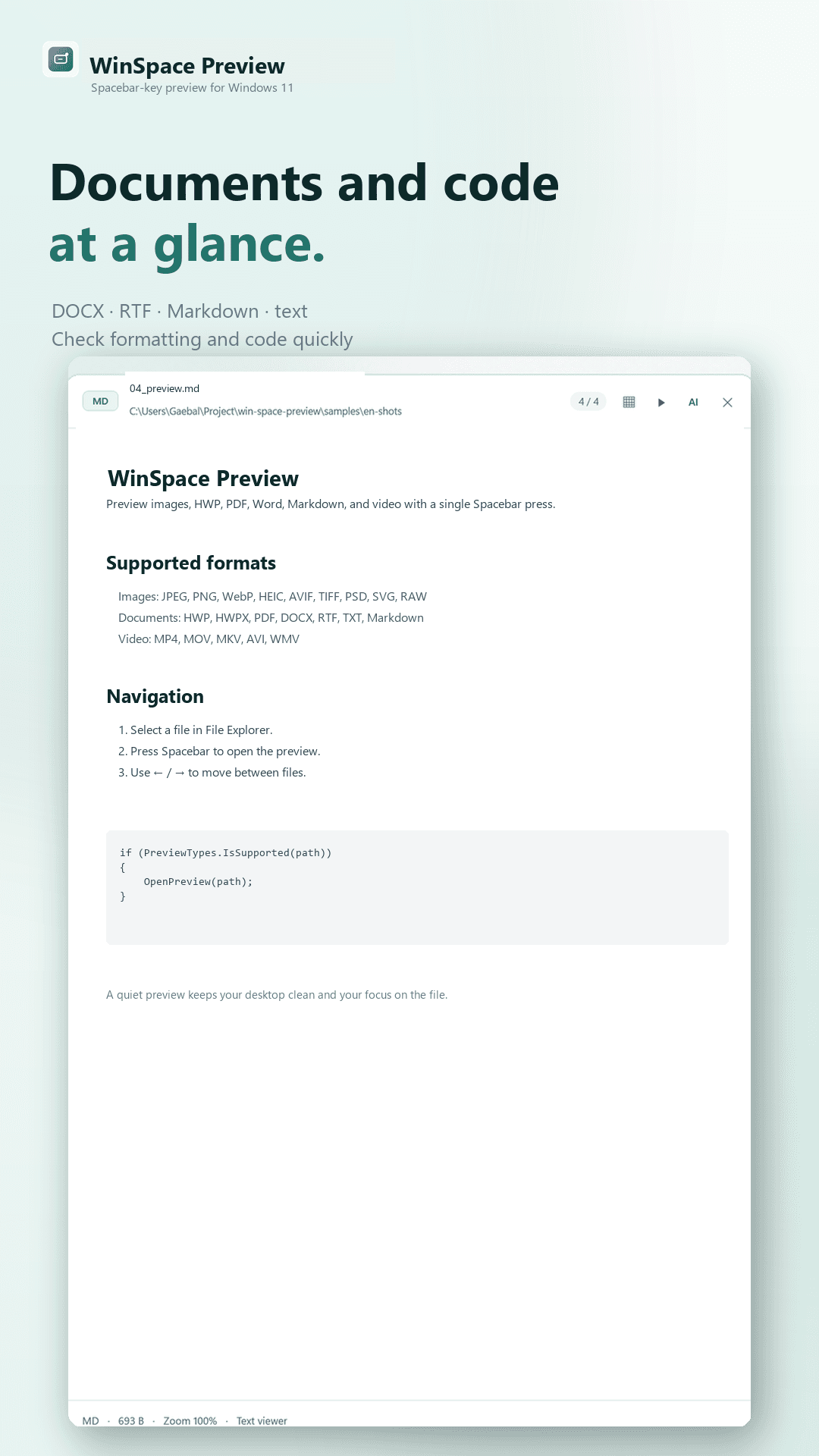
Captured from the actual preview window on Windows 11 at 150% DPI.
Formats
Privacy first
Local previews are processed on your machine. If you do not use AI, file content is not sent externally.
Read the privacy policySupport
If Spacebar does not work or HWP/PDF rendering has a problem, email us with the log file.
gaebal@winwin.emailSpacebar does not work
Check that the tray icon is running, click the Explorer file list, and try again.
HWP does not appear
Password-protected documents are not supported. Check that the file is not damaged.
Logs%APPDATA%\WinSpacePreview\WinSpacePreview.log